Beautiful.ai is one of the oldest AI presentation tools on the market, with smart slide templates that adjust as you add content. It promises polished decks without all the manual work, which sounds appealing if you've ever struggled to build presentations from scratch. But design automation is only part of the picture, and the platform's generative capabilities are another story.
To see how it performs in practice, I put Beautiful.ai to the test on a few common use cases, including a sales deck, an internal update, and a quarterly report. In this review of Beautiful.ai, I'll cover how it works, where it shines, where it disappoints, and how it compares to Plus AI, which pairs professional design with generative AI chops.
{toc}
What can you do with Beautiful.ai?
Beautiful.ai creates presentation outlines, applies predesigned slide layouts, generates copy and visuals, and provides basic editing tools. Some subscription tiers also include customization and collaboration tools. Let's walk through how Beautiful.ai works.
Create outlines
The easiest way to get started with Beautiful.ai is with an existing dataset or document. You have the option to upload spreadsheets, PDFs, or DOCX files for the platform to turn into a presentation.
Alternatively, you can paste in a rough outline or write out a prompt that describes the deck you want to build. Either way, the platform turns the input into a presentation outline for you to review and edit.
Beautiful.ai's outline feature is pretty impressive. It produces an outline in just a few seconds and gives you several options to adjust the content and get it just right.

You have the option to manually add or remove information from individual slides or reorder them as necessary. Or, you can chat with the platform and ask it to make changes or add new slides. You can also upload additional files to provide more data or context before generating your deck.
Apply presentation themes
Beautiful.ai doesn't have prebuilt presentation layouts. Instead, it uses a combination of themes and predesigned slides.
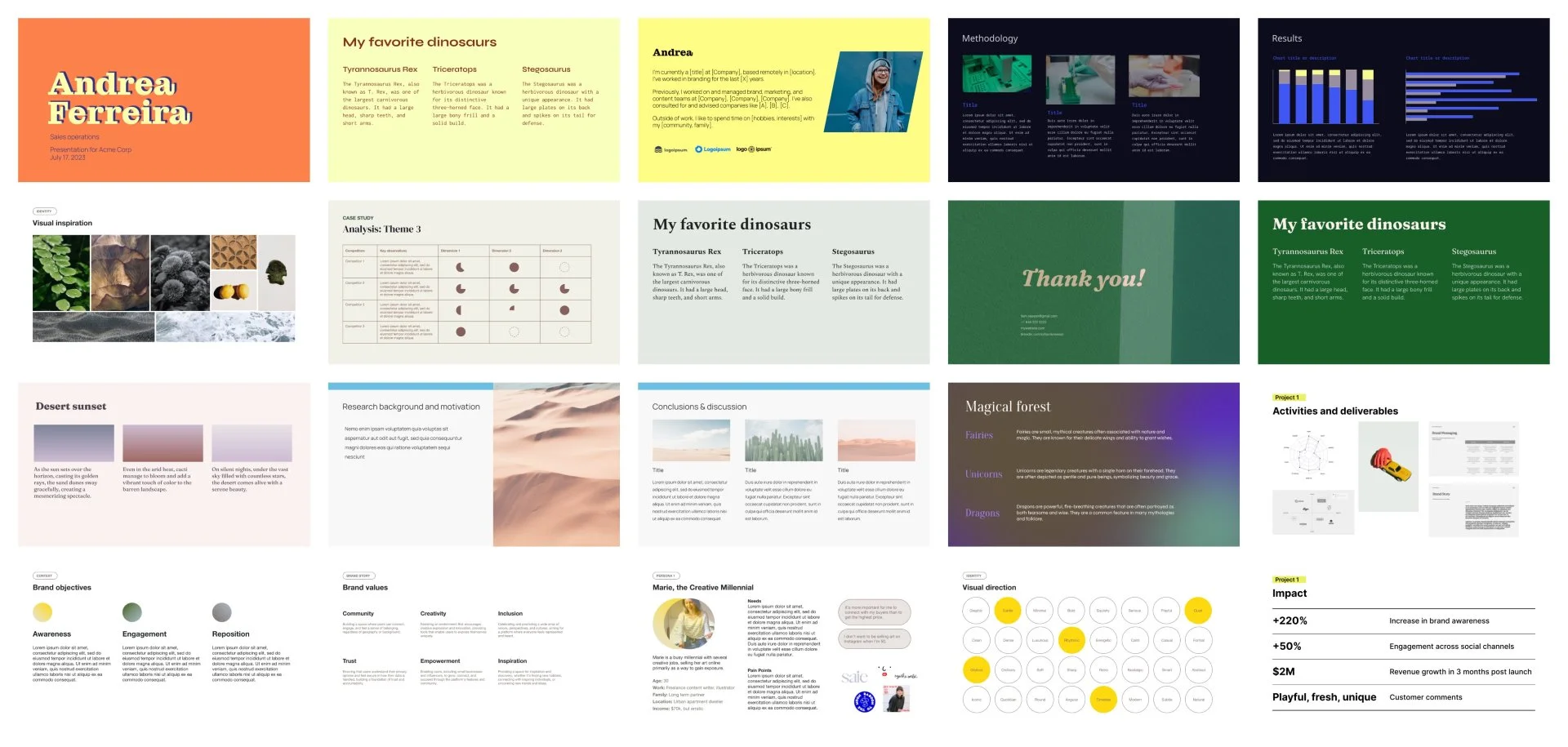
The themes are pretty basic. You get to choose from about a dozen themes with preset colors and fonts.

In theory, you can also create your own custom themes. This process was glitchy for me, though. I tried to save a theme multiple times, but it never appeared in my library — which meant I had to recreate it a few times. Hours later, the same theme appeared multiple times in my library.
All Beautiful.ai presentations pull from a library of 300+ Smart Slides. The upside is that since all of these slides are predesigned, the platform assembles decks really quickly. For example, when I uploaded a PDF, I was able to go from outline creation to content review in about a minute.
The downside is that there's a lot of repetition across the slides. It's true that 300 slide designs might seem like a lot. But because they fall into a pretty small number of categories (like data visualizations or timelines) there aren't really that many for the platform to choose from.
Generate copy and visuals
Once you finalize the outline and choose a theme, Beautiful.ai automatically generates copy and visuals, turning your input into a complete slide deck.
I liked that I could choose between AI-generated images, stock images, and relevant images from a web search. I also appreciated that I could pick from about a dozen AI image styles or provide a prompt to get visuals that aligned with my vision.

But I found Beautiful.ai's generative copy pretty underwhelming.

Across 10 test decks, the platform did the bare minimum when writing copy. It put very little effort into adding context or building out concepts. In some cases, it just left placeholders for me to fill in on my own.

If you have ample prewritten copy for your presentations, this shouldn't be a problem. But if you have ideas or data and you need the platform to fill in the blanks, you'll probably be disappointed.
Complete basic edits
After Beautiful.ai generates the initial deck, you can jump in and start editing. While you get a range of editing options, they all require some manual work. They also require you to go slide by slide instead of making large-scale edits throughout the deck.
For example, you can change the layout for any slide by scrolling through the list of available Smart Slides. This option is nice if you have a decent sense of design and you know what you want. But if you just want it to look good without having to make a decision about every single slide, this experience isn't great.

You can also click to edit any element on any slide. This includes rewriting text, changing colors, updating icons, adding images, or adjusting data visualizations.
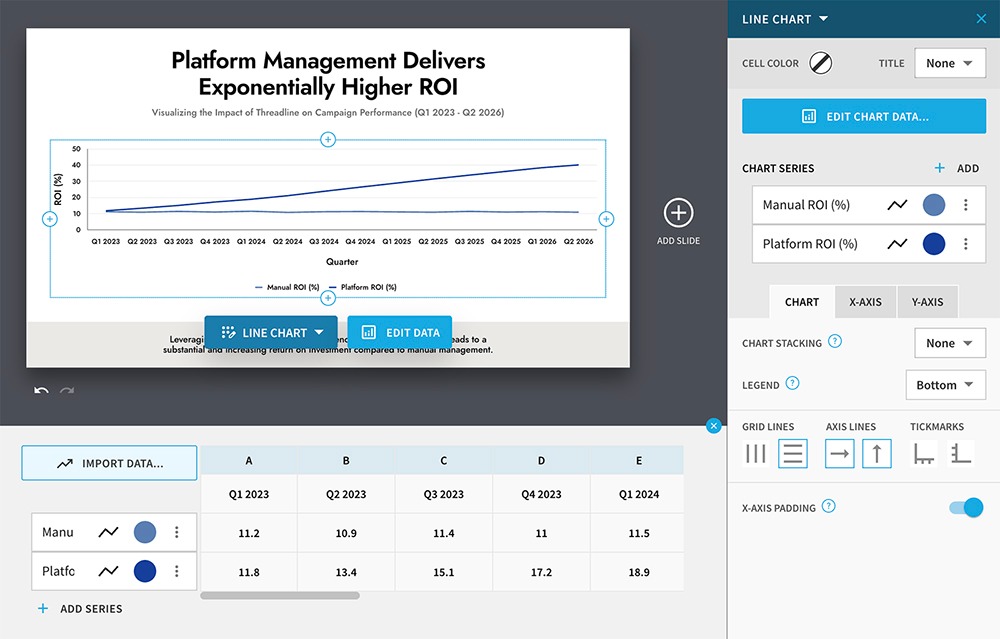
But because Beautiful.ai uses predesigned slide layouts, editing capabilities are somewhat limited. You can move elements to designated areas on slides, but you don't have full control over the design.
Additionally, AI-assisted editing tools are in short supply. The platform has AI-powered tools for updating copy and adding new slides — but that's it.

Build custom templates
If you regularly need to create new versions of monthly reports, sales decks, or internal updates, custom templates can simplify the process. Beautiful.ai lets you turn any presentation into a reusable template, which you can keep private or share with your team.
This is another feature I found glitchy, though. Even after setting up a custom template, it didn't reliably appear in my library. This meant I couldn't access templates when I needed them, slowing down my workflow.
Collaborate with your team
Beautiful.ai's Teams plan lets you create and edit with colleagues. You can collaborate in real time, share slides and templates, and create a shared asset library. This plan includes version control and locked slides so you can keep shared content under wraps when necessary.
Export, share, or present slide decks
Once you've put the finishing touches on your presentation, you have a few options to get it in front of your audience.
The easiest is to share a private or public link with viewers so they can watch it in their browser. You can also present the deck right in Beautiful.ai, using the built-in player.
Alternatively, you can export the deck as a PDF or PPTX file. From there, you can share the file or upload it to Google Slides or PowerPoint, where you can either edit it or present it.
Track engagement
If you end up sharing presentations with customers, prospects, or team members, you might want to know if anyone's viewing them. Beautiful.ai provides analytics so you can see how many people viewed the deck, how long they viewed it, and the total number of downloads.

This is helpful when you want to assess how many people viewed that sales deck or internal memo or if you want to track which shared link is driving the most views.
How Plus AI compares
After spending time in Beautiful.ai, I went back to Plus AI for a few side-by-side tests. The two tools take distinct approaches to creating slide decks, and a few differences stood out the most.
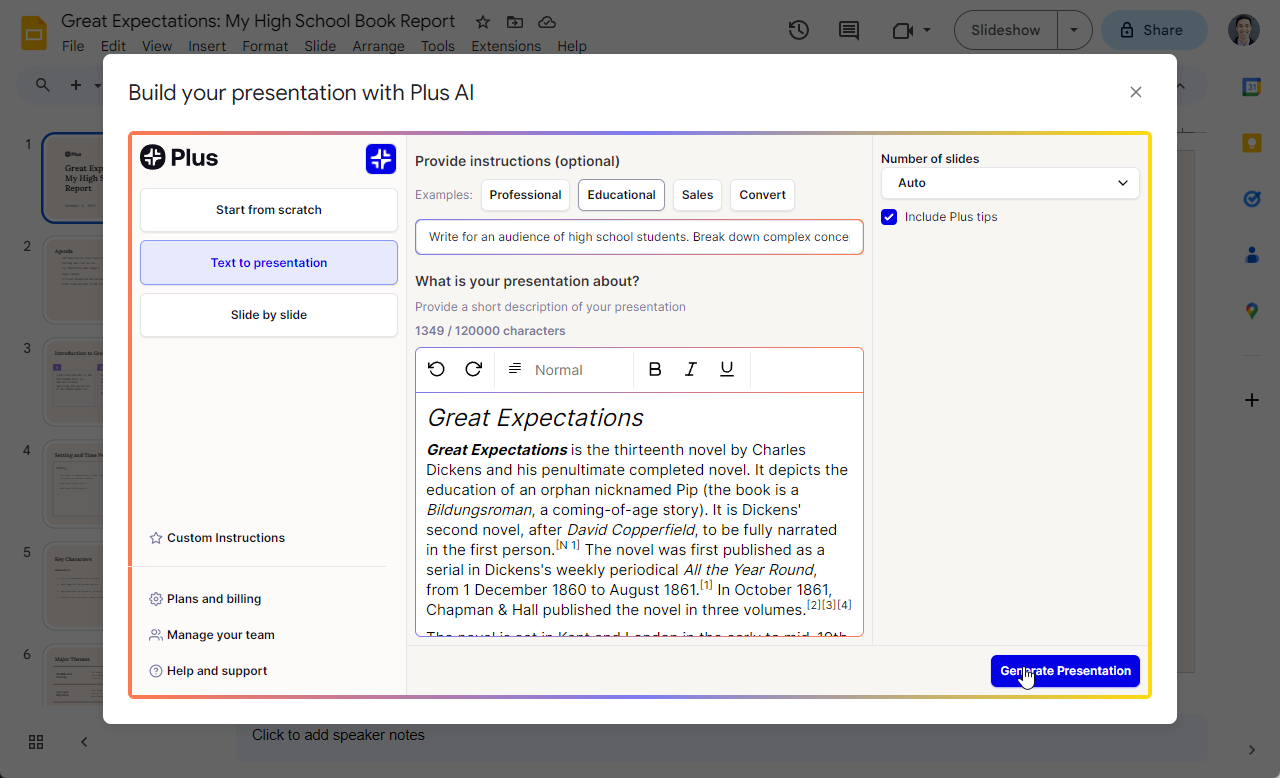
One is where you work. Plus AI works directly in PowerPoint and Google Slides, generating native PPTX and Google Slides files.

That means the decks open, edit, and behave like any other PowerPoint or Google Slides presentation, with no fidelity loss when you share them. If your team is set up to work with Microsoft 365 or Google Workspace, this removes the export step entirely and keeps your decks fully compatible with brand templates and workflows.
AI-assisted editing capabilities are another standout. Plus AI has a deeper set of AI editing tools, like Remix (reformat any slide) and Rewrite (regenerate copy across an entire slide). You can also generate or swap images and icons without leaving the slide.
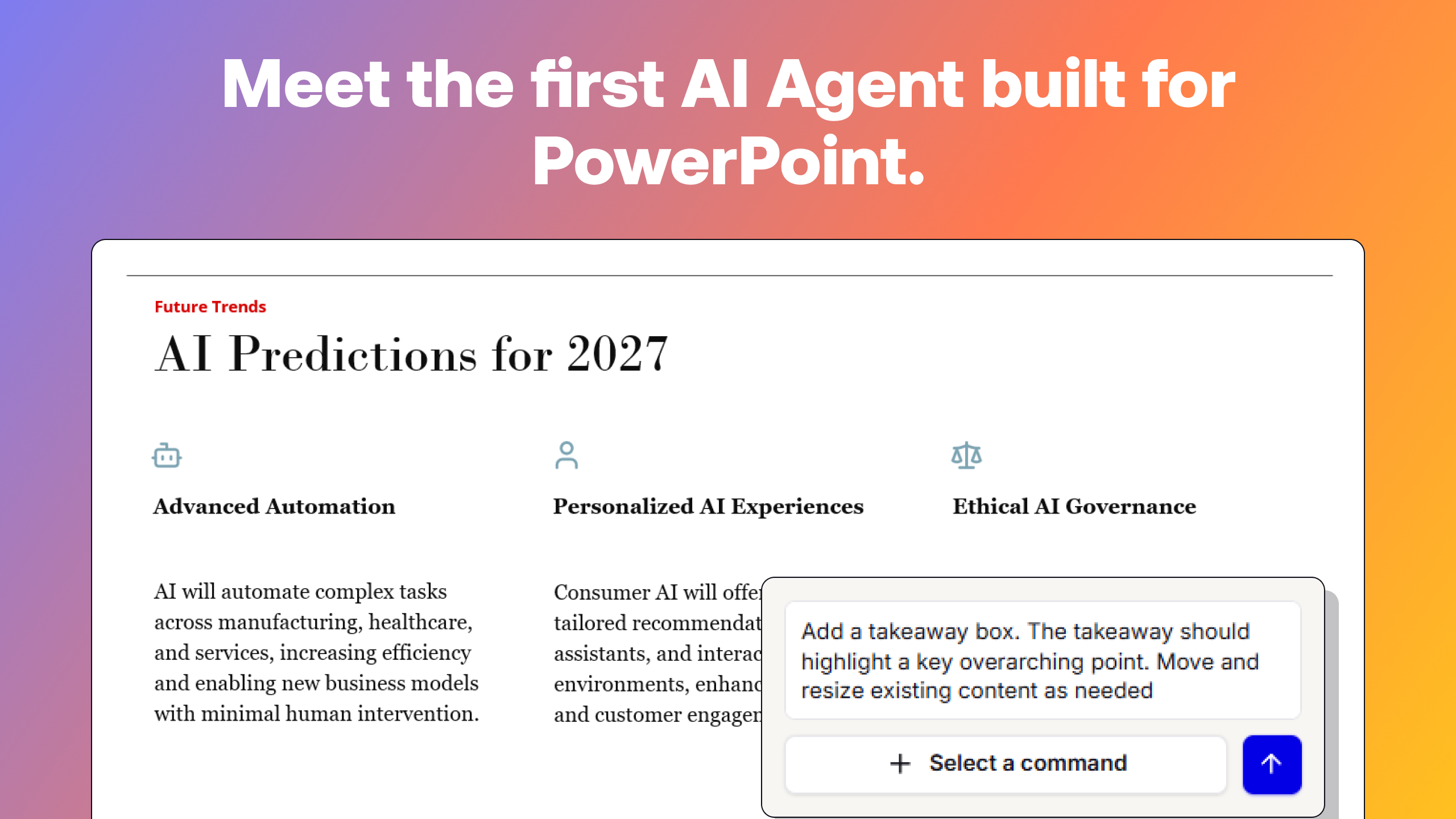
In PowerPoint, the Plus AI Agent goes even further. You can describe what you want changed (apply these brand colors, update those data visualizations, tighten the copy on slide three) and it completes the edits for you.

Customization is where Plus AI really helps teams get ahead. You can save custom templates, brand themes, frequently used prompts, and saved context about your company, products, or messaging.
Plus AI then pulls from these every time someone on your team generates new content. This cuts down on repetitive setup for anyone building decks regularly and keeps everyone working from the same foundation.
Generative copy quality also sets Plus AI apart. Its AI models put more effort into building out slide content, adding takeaways and supporting points instead of leaving placeholders for you to fill in.

I saw this difference on data-heavy slides, where Plus generated useful framing around the numbers instead of just labeling them, and on text-heavy slides, where Plus added context and insights that strengthened the messaging.
What are Beautiful.ai's strengths?
As one of the longest running AI presentation tools, Beautiful.ai does plenty of things well. Here's what stood out to me as I tested the platform:
- Speed: It's one of the fastest presentation makers I've tested. It reliably generates outlines in under 30 seconds and 10-slide decks in under a minute.
- Outlines: Beautiful.ai generates detailed outlines so you know exactly what's going into each slide before you generate the deck. Since you can edit outlines manually or with the AI assistant, you can be sure it's exactly right before you generate the deck.
- Data visualizations: Beautiful.ai does a good job at turning uploaded data or prompts into visualizations. You can edit every element of these visualizations (color, labels, style, the data itself), so they're easy to adjust or update as necessary.
- Analytics: The platform provides view and engagement analytics for all slide decks. If outcomes are important to your team, this is one of the few presentation tools that has built-in analytics.
Where does Beautiful.ai fall short?
Beautiful.ai also has some drawbacks that I recommend weighing before choosing an AI presentation design tool. Here's what disappointed me:
Limited integrations
Sure, Beautiful.ai has a PowerPoint add-in. But it's pretty rudimentary. It can create single slides only, not complete decks. And I couldn't get it to work at all, as it kept throwing errors during my test.
The platform doesn't have a direct integration with Google Slides. You can export presentations and upload to Google Slides or PowerPoint, but you can't use Beautiful.ai natively in either ecosystem.
In comparison, Plus AI integrates with Google Slides and PowerPoint. You can use Plus in either ecosystem, which means you get all the AI-enabled slide design, copywriting, image generation, and editing capabilities where you already work.
Repetitive designs
Beautiful.ai has a library of 300+ predesigned slides. While this helps the platform generate slide decks quickly and ensure that copy and visual elements are never out of place, it also has a downside.
The presentations you create with Beautiful.ai start to look repetitive really quickly. Between the small slide library and the limited theme customizations, you'll see the same slides over and over across decks, no matter the use case.
In contrast, Plus AI presentations offer more variety while still maintaining a professional look. With Plus, you can choose from a wider range of templates, upload branded layouts, and customize as much as you need. This results in unique, on-brand decks for both internal and external use cases.

Surface-level copy
If you expect your AI presentation tool to design professional slides and generate relevant copy, Beautiful.ai will probably let you down. Across multiple tests, I found that Beautiful.ai consistently generated bare minimum copy.
It didn't seem to have the reasoning chops that would allow it to build out slide copy in a helpful way. It rarely took the initiative to insert takeaways or add context, leaving me to do the work.
And in many cases, individual Beautiful.ai slides defaulted to all caps copy. This was a repeated error that didn't seem to have an easy long-term fix.
Sure, you can regenerate slide copy to fix capitalization issues and prompt the platform to add more nuance. But to do this, you have to rework every single text box one at a time — or start from scratch with a new outline.
In my experiments, Plus AI regularly produced copy that was more detailed and more useful. And if I needed to update the copy, the Rewrite tool let me regenerate the entire slide instead of having to go through each text box one by one.

Basic editing tools
Technically, Beautiful.ai has plenty of editing options. You can change slide designs with one click, add new slides, and manually edit visuals and copy on every slide.
But in practice, the process is pretty tedious. There's no conversational editing. The platform doesn't have any quick tools to regenerate entire slides. If you want to add copy or visuals in areas that the Smart Slides designs don't allow, you're out of luck.
And in my experience, adding new slides never worked as expected. The new slides didn't correctly incorporate the existing theme, leaving me with mismatched slides and a useless deck.
In comparison, Plus AI has one-click tools to Remix, Rewrite, and insert images or icons. You can also edit, move, or add any element manually without layout restrictions.
And when you use Plus in PowerPoint, you can edit via prompts with the AI Agent. Just tell it what you want to fix, from rewriting copy to reordering slides to updating charts, and the AI Agent will handle it for you.
Outdated user interface
It's easy to tell that Beautiful.ai is one of the oldest presentation tools on the market. While the AI prompting interface (a single screen) looks relatively new, the rest of the user interface (UI) looks incredibly outdated.
It's not always easy to navigate either. More than once, I clicked a button that I thought would collapse a menu and let me focus, only to find that I'd accidentally exited the outline I was building and had to start over.
Whether you use Plus AI in the browser, in Google Slides, or in PowerPoint, you'll find it has a contemporary UI that's easy to navigate. With Plus, I never had to save templates multiple times, redo my work after clicking the wrong button, or had to wait for hours before decks appeared in my library.
How much does Beautiful.ai cost?
Beautiful.ai has three subscription tiers, plus an ad hoc option for short-term use:
- Pro: Starts at $12/month (billed annually) for individual users who want all the essential presentation creation and editing features.
- Ad hoc: Starts at $45/month for access to all Pro features with monthly billing. Designed for one-off or short-term projects.
- Teams: Starts at $40/month per user (billed annually) for engagement tracking features, multi-language translation capabilities, and collaboration tools.
- Enterprise: Custom pricing for all available features, plus dedicated onboarding, priority support, and enterprise-grade security.
Plus AI has five subscription tiers, with a few key differences. The floor is lower, as Plus AI's Basic plan starts at $10/month per user (billed annually). The Team plan starts at $30/month per user (billed annually), and the Max plan for power users is priced at $200/month per user (billed annually). The Enterprise plan has custom pricing.
Beautiful.ai vs. Plus AI at a glance
Here's how the two AI presentation tools stack up on the features, capabilities, and pricing:
Is Beautiful.ai worth it?
Beautiful.ai delivers on speed. If you need a quick deck and you're fine working in a standalone tool, it'll get you a rough draft in under a minute.
But for most teams, presentations are a regular part of the job, not a one-off task. That calls for deeper customization, better generative copy, and integrations with the tools you already use.
Plus AI is built for that workflow. It works natively inside Google Slides and PowerPoint and has a wider range of customization options. It also has stronger reasoning and better generative copy out of the box and gives you AI editing tools that save real time.
Start your free Plus AI trial to see the difference.
Beautiful.ai FAQ
Is Beautiful.ai free?
No, Beautiful.ai doesn't have a free plan. Pricing starts at $12/month with annual billing or $45 for an ad hoc project.
Does Beautiful.ai have a free trial?
Yes, Beautiful.ai has a 14-day free trial. It requires a credit card to get started.
Can I export to PowerPoint from Beautiful.ai?
You can export Beautiful.ai slide decks as PPTX files, which you can then upload to PowerPoint. However, not all presentation elements (particularly data visualizations) will be editable in PowerPoint.
Can I use Beautiful.ai with Google Slides?
Beautiful.ai doesn't have a Google Slides integration. However, you can export slide decks from the platform and then view or edit them in Google Slides.