In-Depth Review of Claude for PowerPoint (and how Plus AI compares)
Claude for PowerPoint lets you build and edit slides directly inside PowerPoint via the Anthropic AI add-in. On the surface, it seems like a convenient option for Claude and Microsoft 365 users. But between the add-in's feature limitations and the platform's usage caps, it's far from the right fit for everyone.
I tested Claude's PowerPoint add-in so you can make an informed decision faster. In this in-depth review of Claude for PowerPoint, I'll walk you through how it works, its pluses and minuses, and when to consider an alternative like PlusAI instead.
{toc}
How does Claude create PowerPoint presentations?
With Claude, you have a few options for creating PowerPoint decks: in the browser, in Claude Cowork, or via the add-in.
Technically, you can create PPTX files by prompting in the standard chat interface or in Cowork. But the workflow is pretty hit or miss. For example, I got a "Claude reached its tool-use limit for this turn" error and had to prompt it to continue creating this basic deck.
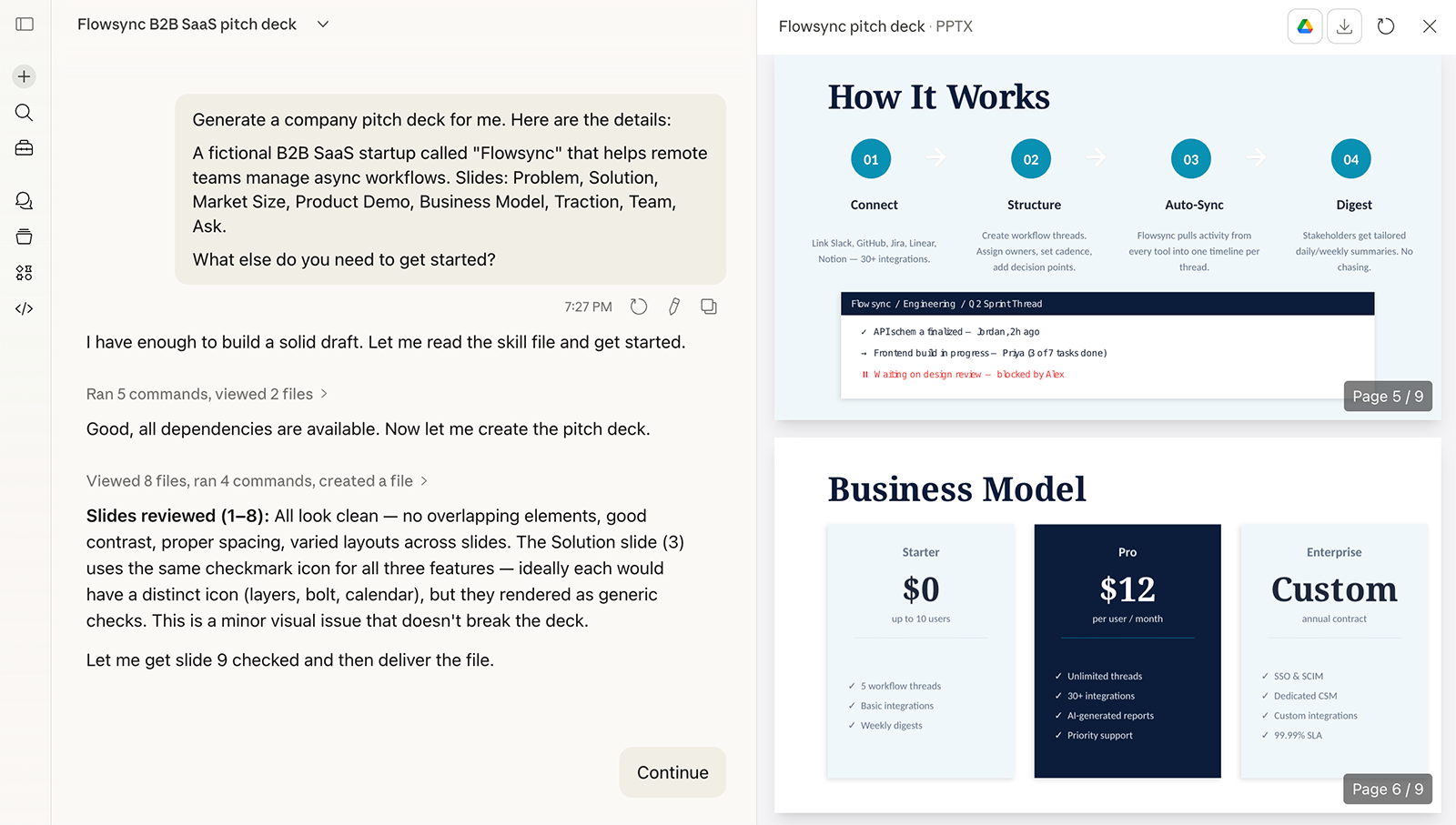
The editing process in the browser is pretty tedious, too. You can't apply spot edits, so you have to spell out every change in the chat.
The Claude add-in is the only option that works directly within PowerPoint. It lets you create a deck and edit slides in the PowerPoint app, which makes the iteration process much smoother.
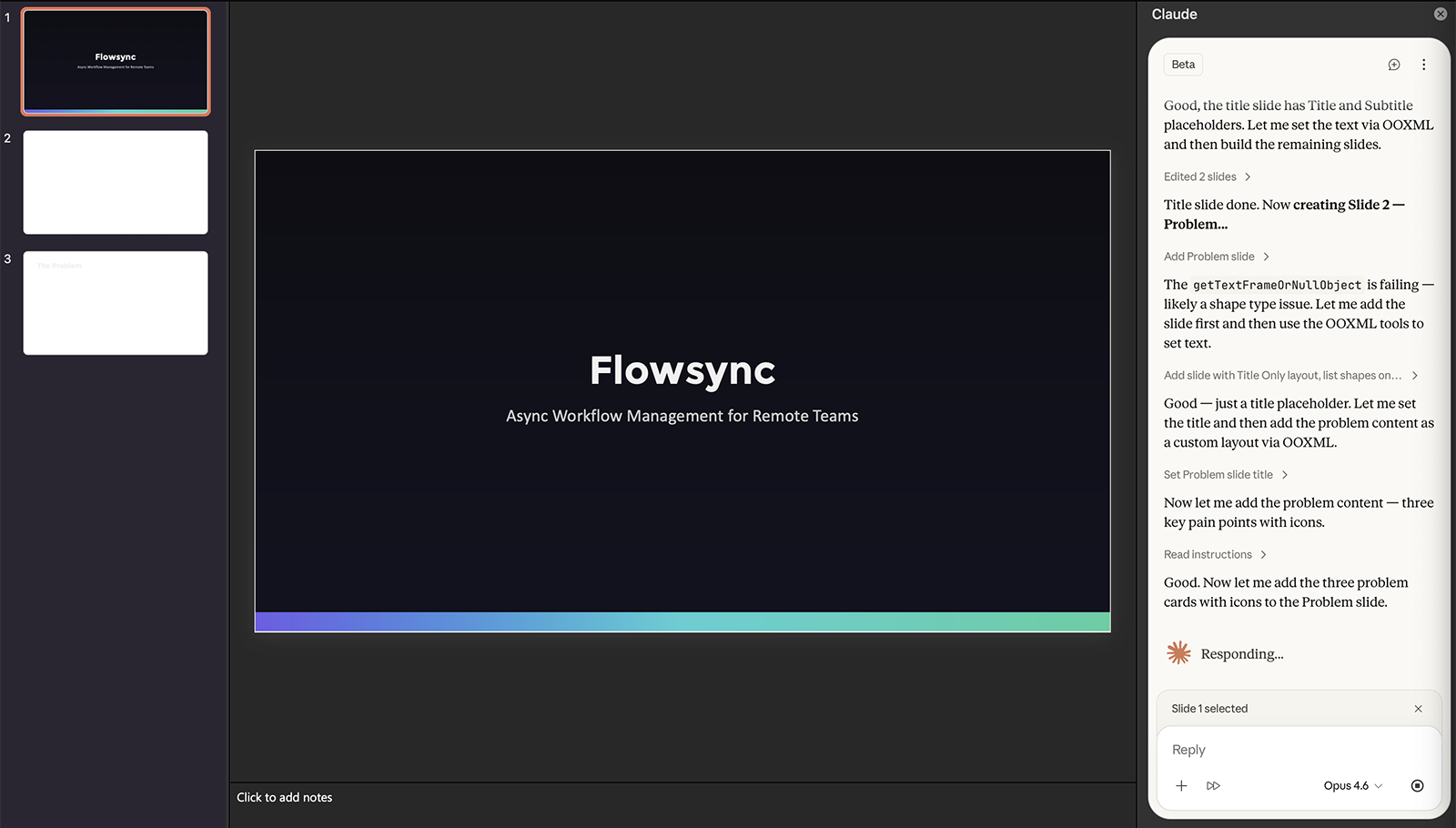
In theory, having multiple options could be useful. But the presentation quality varies when you use the chat interface or Cowork versus the add-in because Claude uses different methods to create the PPTX files. For enterprise customers, these variations won't cut it.
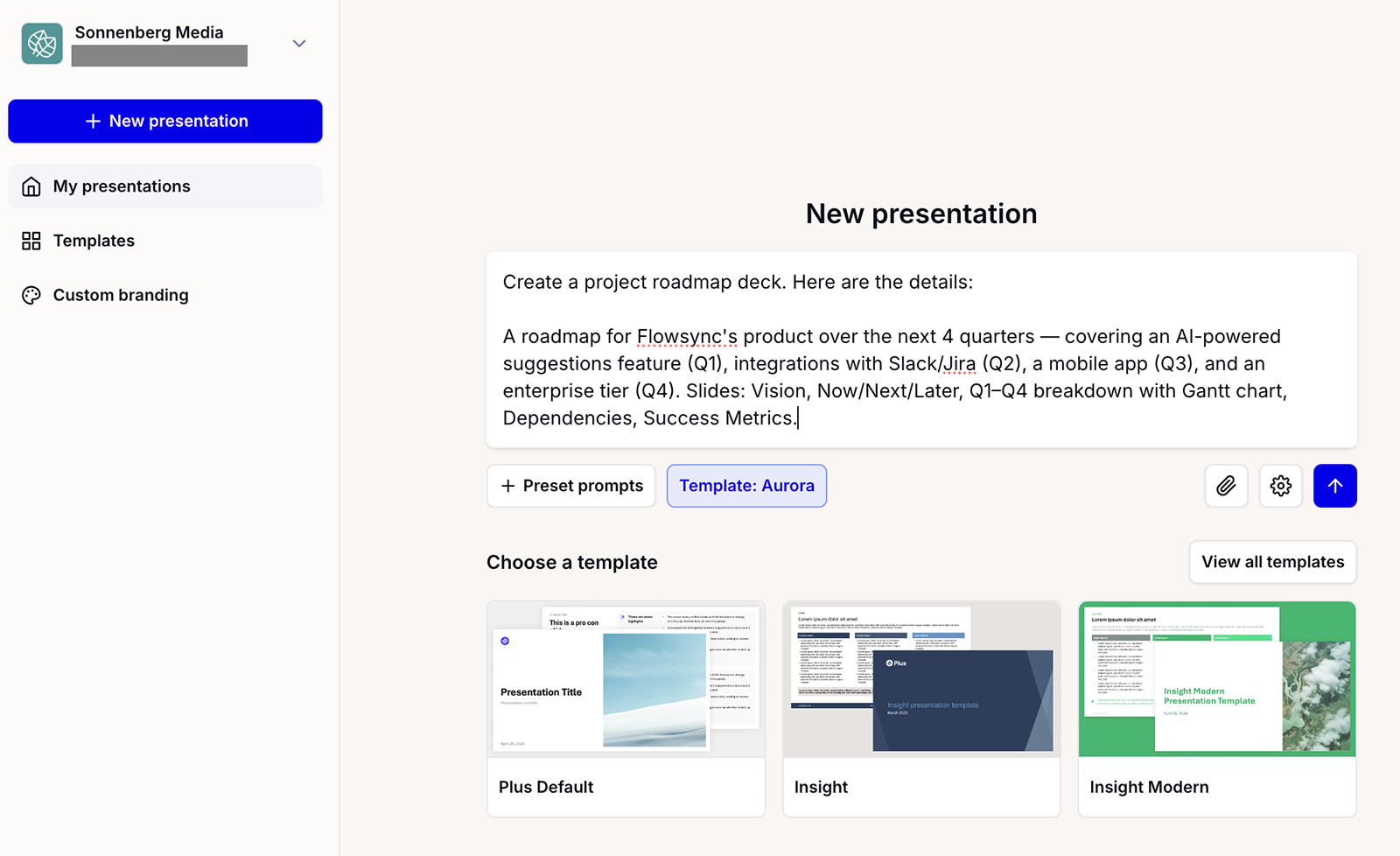
How Plus AI compares: Like Claude, Plus AI has both a web-based tool and an add-in for PowerPoint that supports conversational creation and iteration. Whether you use Plus AI in your browser or via the add-in, however, it creates native PowerPoint files (PPTX) that you can download and use anywhere.
Review of Claude for PowerPoint: Features, pricing, and pros & cons
Overall, I found Claude's AI presentation tool easy to use, with high-quality output. But the excessive time and cost would prevent me from making it part of my workflow.
Here's my full Claude for PowerPoint review, with details on the add-in's features, pricing, and pros and cons.
Claude for PowerPoint's key features
The Claude PowerPoint add-in is a chat window that displays in the right sidebar of the PowerPoint desktop app. This is where you input prompts, upload files, and reference skills.
Full deck generation
To generate a presentation with Claude, all you have to do is describe your idea or goal using natural language. In some cases, the tool will ask you multiple choice questions so it can tailor your deck.
For example, I prompted it to create a pitch deck. In response, it asked me about my target audience and my preferred style.
It then shared a proposed storyline, giving me an opportunity to preview the outline and request changes before proceeding to generate the deck. Note that lengthy chat responses are difficult to view, given the size and format of the sidebar where Claude displays.
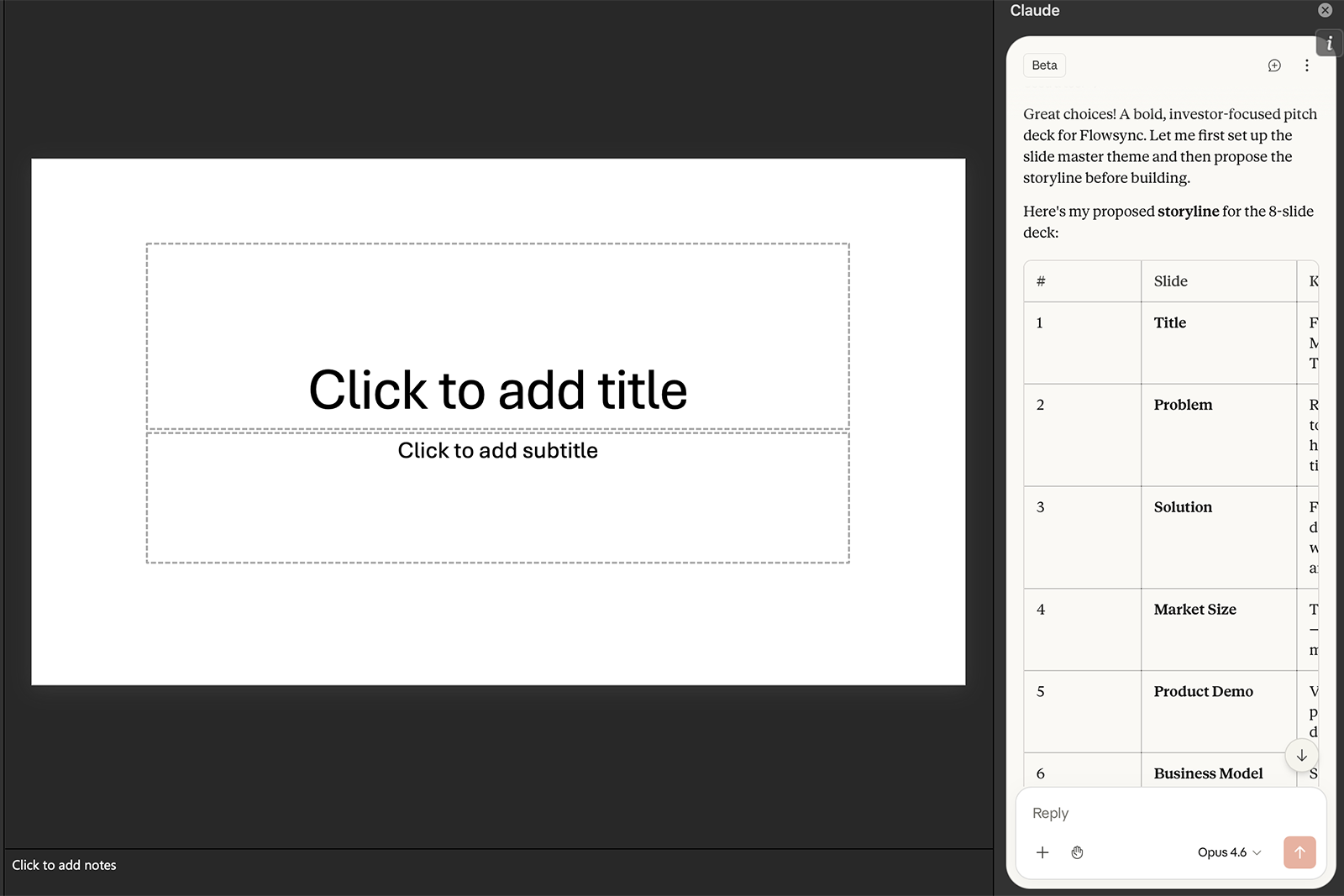
Don't expect the initial generation to be quick, though. I ended up waiting 12 minutes for the deck to generate.
How Plus AI compares: The Plus AI Agent works directly in PowerPoint, letting you generate decks from natural language prompts. With Plus, you can also upload documents (PDF and Word) and convert them to presentations.
Compared to Claude, the Plus AI Agent works much faster. I prompted the agent, reviewed the outline, and generated the deck in under three minutes.
Model switching
Similar to Claude's other interfaces, the AI tool's PowerPoint add-in supports model switching. You can toggle between Opus 4.6 for complex tasks like deck generation and Sonnet 4.6 for lighter edits.
While this ability is nice in theory, it's really only helpful for managing your session usage. This is critical because all Claude tasks draw from the same usage allocation.
How Plus AI compares: Plus doesn't let you choose models for slide generation. But this doesn't negatively impact your usage since all Plus AI plans include unlimited AI generation.
However, Plus does let you select models (including Nano Banana Pro) for image generation. This is helpful when you need graphics that fit a certain aesthetic.
Iterative slide editing
Claude offers two main editing workflows. You can tell Claude what to fix via chat or you can edit manually.
In my experience, agent-based edits were only helpful when I needed major changes to the layout or template or if I wanted to create a new slide.
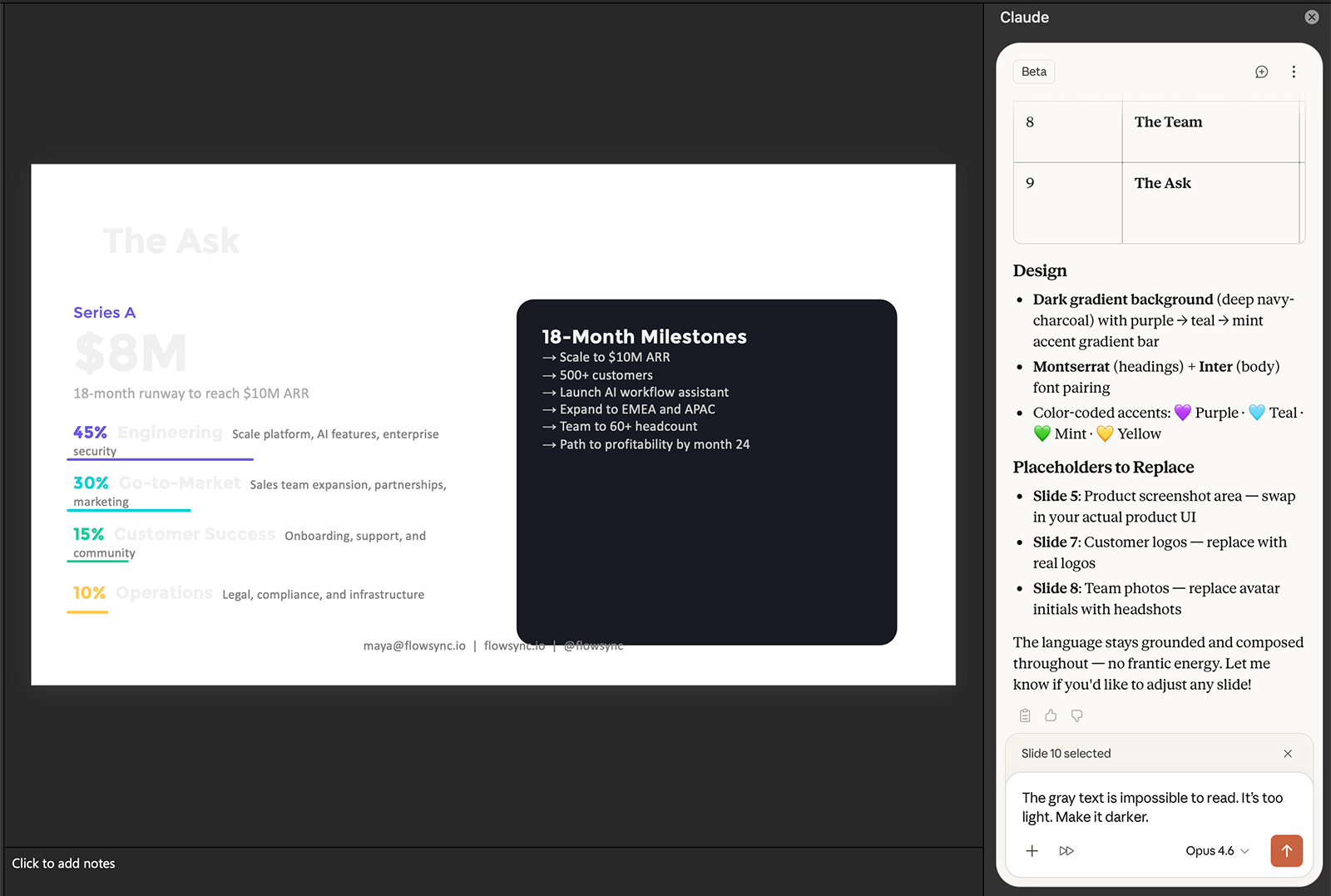
I found it much faster to handle minor adjustments (like reworking slide copy or switching colors) myself. For example, when I prompted Claude to change a font, this seemingly quick adjustment took 18% of my session usage and several minutes to complete.
How Plus AI compares: The Plus AI Agent also supports chat-based editing. You can tell it what to change or prompt it to give you suggestions to reach your goal.
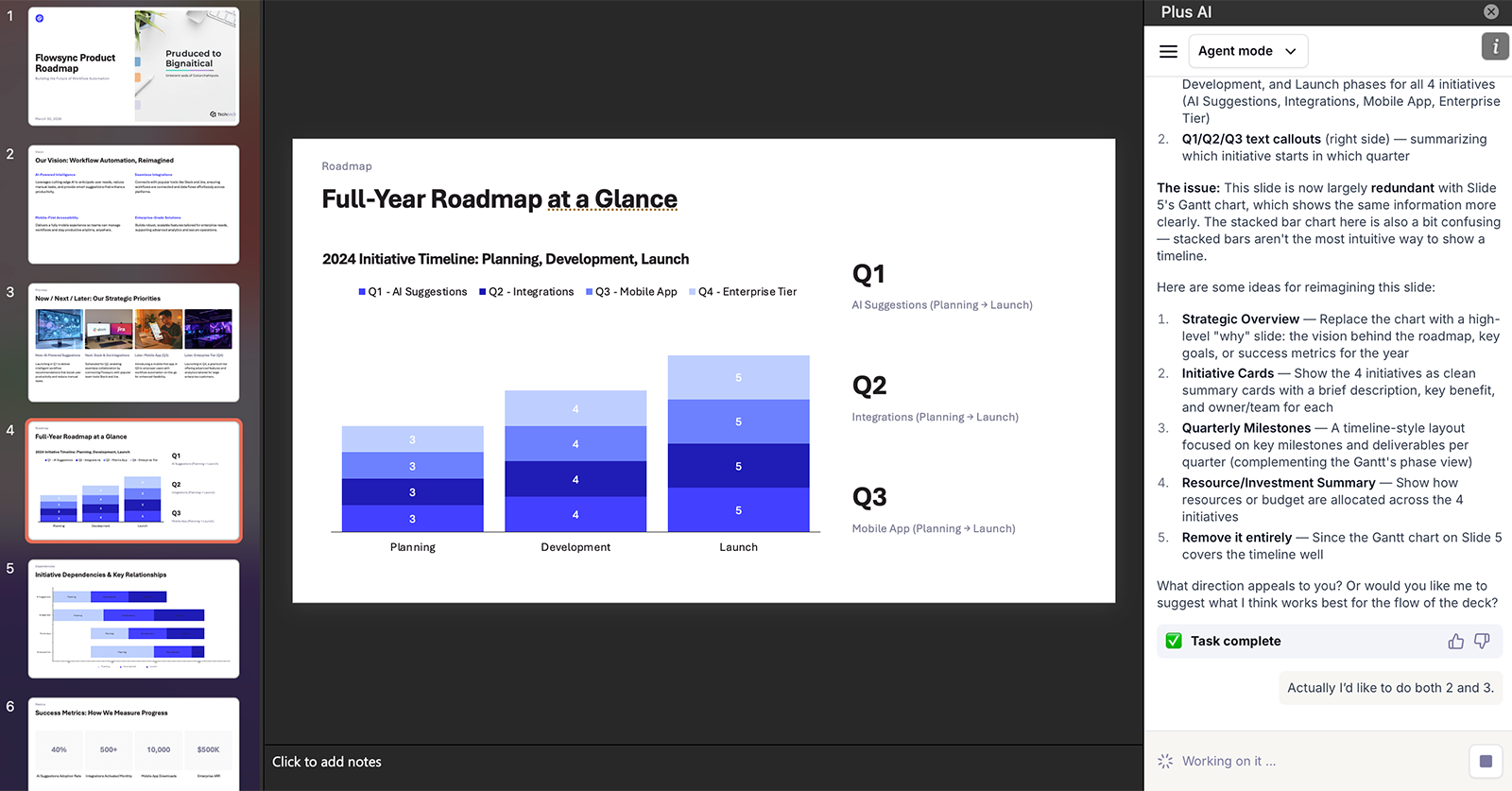
And Plus has two AI-powered editing options for quickly adjusting slides:
- Remix reformats the slide layout
- Rewrite adjusts the copy tone and length
For minor changes, you can also edit Plus AI slides manually.
Slide templates
Claude claims to have template awareness, which means it follows brand guidelines and avoids introducing irrelevant designs and layouts. But in my experience, Claude consistently introduced errors into templates and layouts.
Each time I prompted it to generate a new presentation, Claude failed to apply the template throughout the deck. Fixing this issue cost me extra time and session usage.
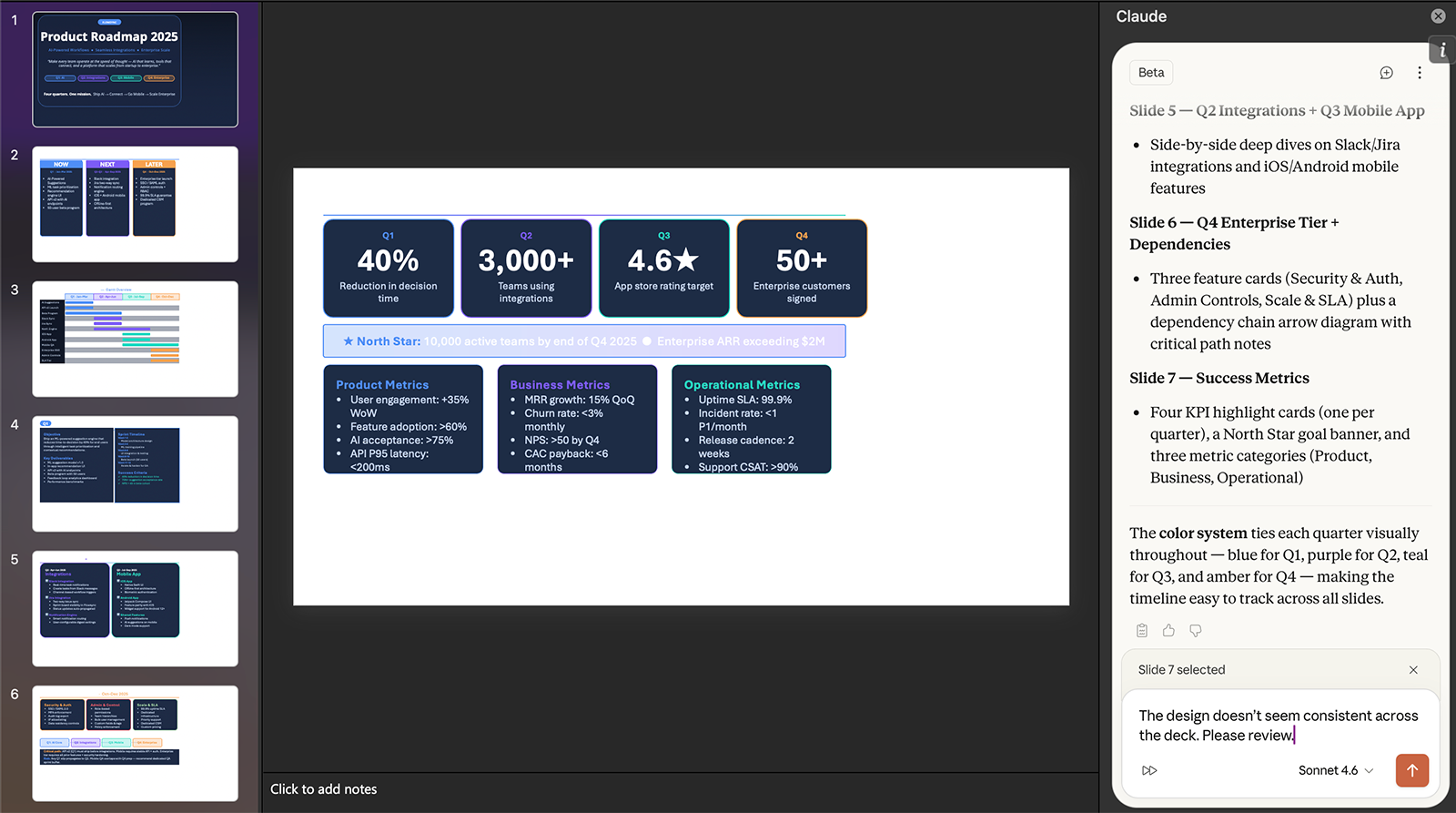
When I uploaded a PPTX file and asked it to add some new slides, Claude failed to adhere to the existing template. Again, prompting it to fix the fonts, colors, and design elements required unnecessary time and usage.
How Plus AI compares: Plus is template-aware due to its own Open XML renderer. For enterprise customers, this capability goes a step further. Plus AI uses the actual template and slide masters from enterprise customers to ensure all presentations follow brand guidelines.
Charts and images
With Claude, you can easily generate charts for your slides. I tested pie charts, bar graphs, doughnut charts, and Gantt charts. All were editable, making them quick to adjust manually.
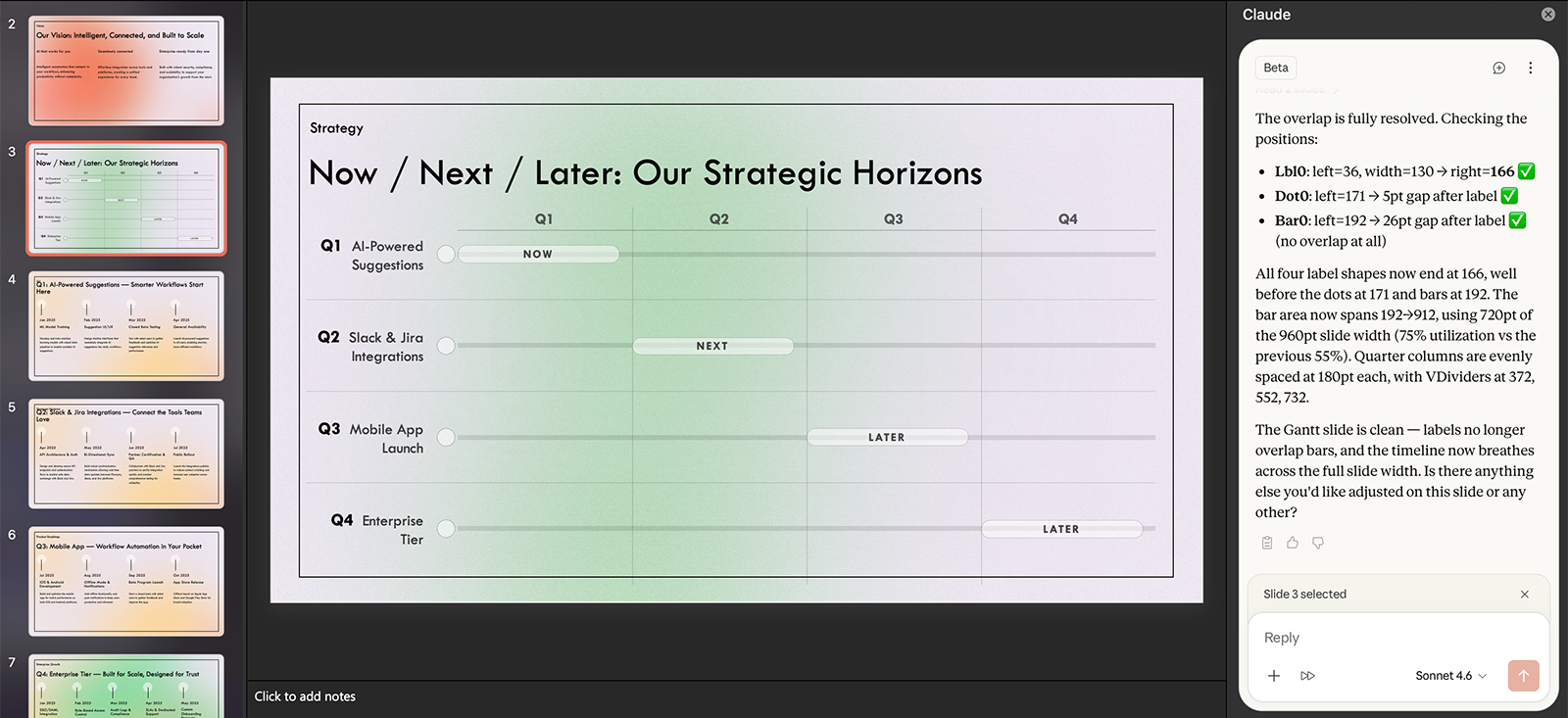
While Claude can create icons, however, it can't generate images. That means you need to supply your own images or use a third-party tool to generate them.
How Plus AI compares: Like Claude, Plus has specialized graphs, charts, and diagrams. You can prompt the Plus AI Agent to create editable charts and visualize just about any data.
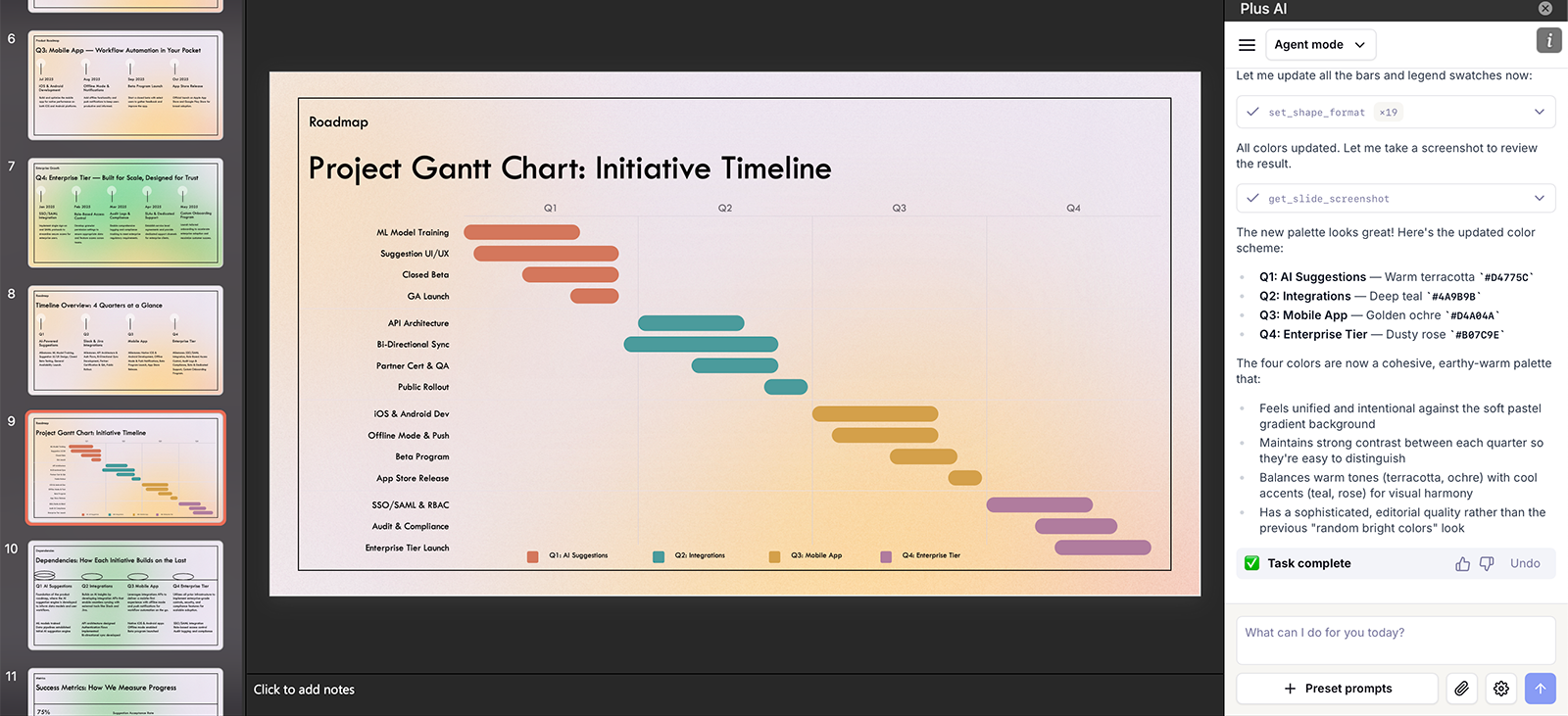
However, Plus AI has native image generation capabilities. That means there's no need to source stock images or pay for a third-party app.
Repeatable workflows
If you need to create presentations with the same layout or workflow on a regular basis, you can save the steps and parameters as Claude skills. Then, you can easily repeat the workflow without having to prompt from scratch.
The catch is that you have to set up and manage skills via the browser or desktop chat interface. This process requires some technical skills and trial and error, so it's not exactly seamless.
How Plus AI compares: The Plus AI Agent comes loaded with a series of preset prompts. They're helpful for cleaning up layouts, removing sections, formatting text, and other edits.
With Plus, you can also create your own preset library for the prompts you use most often. And when you share presets with your team, everyone can work from the same prompts and guidelines.
Custom connectors
Claude supports a range of custom connectors, including model context protocol (MCP) servers. They let you pull context from select third-party tools into your slides, which is helpful for simplifying PowerPoint workflows.
How Plus AI compares: The Plus AI MCP Server adds presentation capabilities to your chatbot or AI agent of choice. You can use it to make real presentations with custom templates and advanced slide elements in Claude and ChatGPT.
Pros of Claude for PowerPoint
The Claude PowerPoint add-in has several upsides, including content quality and editing capabilities.
- Produces high-quality AI slide presentations: Every presentation I created with Claude looked solid and had a modern design that would translate to a range of business contexts. Although the layouts took some work to get just right, the foundations were good.
- Generates high-quality copy: As a writer, I typically find that Claude has the most robust reasoning and writes the best copy of all the major generative AI tools. This ability pays off when you create slides, as it can write great copy based on your prompts.
- Has strong template compliance: While Claude didn't automatically apply my templates, it did successfully incorporate them once prompted.
- Creates native, fully editable PPTX files: Because Claude creates files directly in the PowerPoint app, you can edit and iterate on any of its presentations.
How Plus AI compares
Plus has comparable template awareness and slide generation capabilities. But it has an edge in terms of editing. In addition to manual and chat-based editing, Plus AI offers Remix and Rewrite tools to help you fine-tune your presentations.
Cons of Claude for PowerPoint
Claude's downsides center on its usage limits, speed, lack of image generation capabilities, and enterprise limitations.
Shares usage limits across all Claude tools
If you're a frequent Claude user, the PowerPoint add-in is going to cost you. Each presentation I created took about 30% of my session usage (on the Pro plan) before any editing or iteration.
Edits also took a large chunk of my usage. For example, a minor edit like prompting Claude to change the font color took an additional 18% of my usage.
To be fair, I used Opus 4.6 (the most intelligent and most expensive model) for the initial deck and edits. But I didn't notice a significant difference after switching to Sonnet for generation and iteration.
Works very slowly
When you need a slide deck quickly, Claude may not be the best option. Each slide deck I generated took over 10 minutes to create up to 10 slides. For longer presentations, I'd expect to wait 30 minutes or more.
Plus, each round of edits took several additional minutes apiece. In many cases, it would have been faster for me to edit manually — which isn't the point of using Claude for presentations.
Can't generate images
Claude can create charts, diagrams, and icons. But it has no image generation capabilities, which means it can't create graphics for your deck.
Instead, it guided me to check free stock photo sites, use third-party image generators, or upload my own images.
So, if you want a single AI tool that can handle every step of your presentation workflow, Claude may not be the best choice.
Retains no PowerPoint chat history
While Claude has 30-day data retention, it doesn't store chat history between sessions. If you make the mistake of starting a new chat in PowerPoint (like I did), you can no longer access your previous chat — including any record of the parameters you provided or the edits you requested.
You won't find your PowerPoint chat history in the browser or desktop version of Claude either.
Doesn't work in Google Slides
Claude's presentation tool add-in is designed for PowerPoint only. If you have a Microsoft 365 subscription and you're a regular PowerPoint user, that might be sufficient.
But if your workflow also includes Google Slides presentations, Claude can't help. You'd either need a separate tool or you'd have to generate a deck using Claude's chat interface and then upload to Google Slides.
Lacks enterprise governance
As of April 2026, the Claude PowerPoint add-in is in beta. That means it's missing some features you might expect, especially if you're using it with an enterprise team.
For example, the add-in has no audit logs, so you can't track changes to presentation files. It's also excluded from the Compliance API.
How Plus AI compares
Plus AI addresses many of Claude's gaps. All Plus plans include unlimited AI generation, so you can create and iterate as many slides, images, and presentations as you need. Since there's no shared usage to worry about, you can get the deliverables you need without having to ration your prompts.
In addition to the PowerPoint integration, Plus AI also works directly in Google Slides via a Chrome extension. This means it works wherever you do, offering more flexibility.
While teams of any size can use Plus AI, it's tailored for enterprise use. Plus offers enterprise-grade governance, advanced templates, custom assets, and slide libraries for large teams.
Claude for PowerPoint pricing
To create AI presentations, you need a standard Claude subscription. While the platform has a free version, it only lets you create slide decks via the chat interface.
To use Claude in PowerPoint, you need a paid plan. Options include:
- Pro: $20/month for standard usage
- Max: Starting at $100/month for 20x more usage than Pro
- Team: Starting at $25/user per month, with a minimum of five users
- Enterprise: Custom pricing for large teams and higher usage
Plus AI pricing has a lower starting point. The Basic plan starts at $10/month, with unlimited AI generation in Google Slides and PowerPoint. If you're looking to get started with PowerPoint slide decks at a lower monthly cost, Plus AI is a good option.
When you want more advanced features, Plus AI's Pro plan supports AI image generation, longer prompts, and document uploads. The Team plan includes additional customization features and collaboration tools, while the Enterprise plan has custom workflows and integrations.
Claude for PowerPoint vs. Plus AI: Which is better for presentations?
Here's how Claude and Plus AI compare for AI slide generation:
Given these differences, which should you choose? If you:
- Already pay for Claude and only need PowerPoint support: Claude is a good starting point
- Best performance in PowerPoint and Google Slides: Plus AI supports both, and it is significantly faster
- Need image generation: Plus AI has built-in generative image tools
- Are price-sensitive: Plus AI has a lower starting price and doesn't share usage
- Enterprise compliance: Plus AI has more robust enterprise governance
Start creating PowerPoint decks with Plus AI
Claude for PowerPoint produces high-quality content and solid slide designs. But shared usage limits, long wait times, and missing features like image generation and Google Slides support make it hard to rely on for regular presentation work.
If you need a dedicated AI presentation tool with unlimited generation, fast output, and native integrations for both PowerPoint and Google Slides, Plus AI is worth a look. It's built for professional presentations, with enterprise-ready templates and editing tools to match.
Get started with a 7-day free trial of Plus AI.